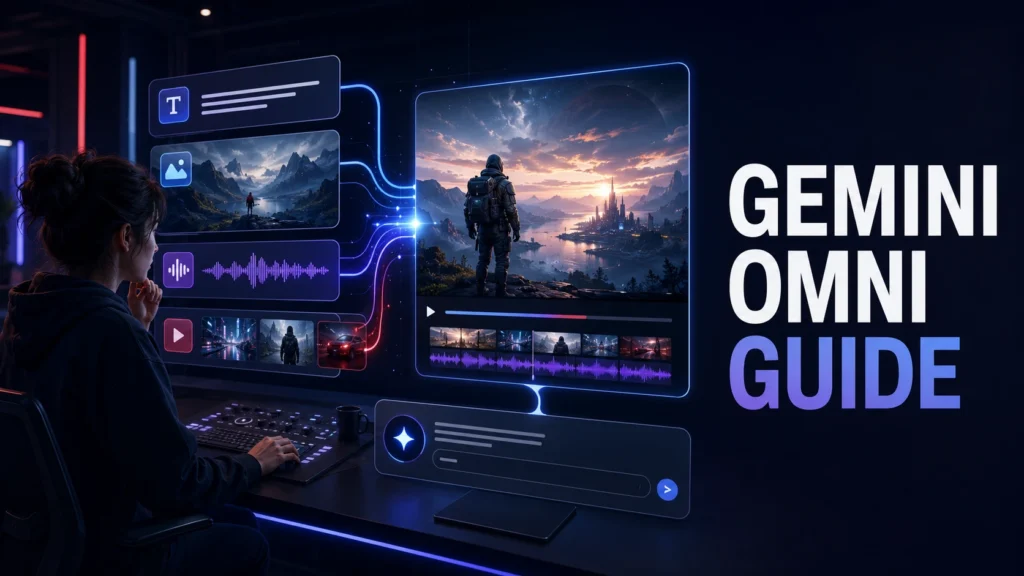
Creating an AI video used to mean writing a detailed prompt, waiting for a result, and starting again whenever one small detail looked wrong. Gemini Omni changes that workflow by combining video generation and editing in one conversational experience.
Google introduced Gemini Omni Flash as a multimodal AI model that can create video from text, images, video, and supported media references. More importantly, you can refine the result with simple follow-up instructions. Instead of regenerating the whole clip, you can ask it to change the lighting, replace an object, adjust the camera angle, or apply a new visual style.
This guide explains what the Gemini Omni AI video generator does, how to access it, what it costs, how it compares with Veo 3.1, and how to write prompts that produce better results.
Quick answer: Gemini Omni Flash is Google’s AI video generation and conversational editing model. It creates 10-second videos, generates native audio, accepts multiple types of input, and lets users refine a clip through follow-up prompts. It is available through supported Google AI subscriptions and, for developers, in Google AI Studio and the Gemini API.
What Is Gemini Omni?
Gemini Omni is a family of generative models designed to create content from different kinds of input. The first released model, Gemini Omni Flash, focuses on video.
Unlike a basic text-to-video tool, Omni combines Gemini’s reasoning and world knowledge with generative media capabilities. You can begin with a written scene, one or more reference photos, or an existing video. The model then generates a new video while trying to preserve the people, objects, actions, and visual relationships described in your prompt.
Its standout feature is conversational editing. Every follow-up instruction can build on the previous result. For example, after creating a product video, you could ask:
- “Change the background to a luxury black studio.”
- “Add a slow camera push-in.”
- “Make the lighting warmer.”
- “Keep everything else the same, but replace the table with marble.”
This makes Gemini Omni useful to creators who want more control but do not want to learn a traditional editing timeline. It also expands what a modern AI video editor can do.
Gemini Omni Flash Features
Here are the main capabilities available or announced as of July 2026:
| Feature | What it means for creators |
| Text-to-video | Describe a scene and generate a video from the prompt |
| Image-to-video | Animate a photo, illustration, product image, or character reference |
| Multiple image references | Use up to five photos in supported Gemini experiences |
| Video-to-video editing | Upload or reference a video and request visual changes where available |
| Multi-turn editing | Improve the same result through follow-up instructions |
| Native audio | Generate synchronized dialogue, ambience, music, or sound effects |
| Camera direction | Request close-ups, static shots, push-ins, dolly zooms, and other movements |
| Style transfer | Reimagine footage as anime, claymation, watercolor, cinematic film, and more |
| Real-world knowledge | Use Gemini’s understanding of subjects, settings, physics, and narrative context |
| Vertical and horizontal formats | Create 9:16 or 16:9 output through supported developer settings |
Gemini Omni currently creates clips up to 10 seconds long. That is enough for a social media hook, product shot, visual effect, short advertisement scene, or part of a longer video assembled from multiple clips.
How to Access Gemini Omni
There are several ways to access Gemini Omni, although availability can vary by country, age, plan, and feature.
1. Gemini App
Gemini Omni is available to eligible users aged 18 or older on Google AI Plus, Pro, and Ultra plans in markets where the Gemini app is supported. Google says Omni will replace Veo inside the Gemini app for AI video generation and editing.
Some capabilities, including avatars or editing an uploaded video, may not be available in every country. Check the current options shown in your account before subscribing for one specific feature.
2. Google Flow
Google Flow is designed for more creative filmmaking workflows. It is useful when you want to build a sequence, work with visual references, or iterate on a cinematic idea. Gemini Omni adds conversational creation and editing to that workflow.
3. Google AI Studio and Gemini API
Developers can access the public-preview model using the model ID:
gemini-omni-flash-preview
The Gemini Omni API supports video generation, image-to-video creation, multi-reference input, and sequential edits through Google’s Interactions API. This route is designed for people building apps, automated creative tools, product-video generators, or custom content workflows.
4. YouTube Creation Tools
Google has also announced Gemini Omni for YouTube Shorts and related creation experiences. Rollout and usage limits may vary, so availability should be confirmed inside the relevant YouTube tool.
Gemini Omni Pricing
Gemini Omni pricing depends on how you use it.
For consumers, access in the Gemini app requires an eligible Google AI Plus, Pro, or Ultra subscription. Subscription prices and usage limits can vary by market and can change over time, so check Google’s current plan page for your country.
For developers, Google priced Gemini Omni Flash at $0.10 per second of generated video output when it entered public preview on June 30, 2026. A 10-second generation would therefore cost about $1.00 in output charges, excluding any other applicable input or platform costs.
Because AI video often requires more than one attempt, calculate the cost of the full workflow rather than only the final clip. If you generate four versions and keep one, your real generation cost is closer to the cost of all four attempts.
How to Use Gemini Omni to Create an AI Video
The exact buttons may differ between the Gemini app, Flow, and Google AI Studio, but the creative process is similar.
Step 1: Choose the Final Format
Decide where the video will be published before writing the prompt:
- Use 9:16 for TikTok, Instagram Reels, Facebook Reels, and YouTube Shorts.
- Use 16:9 for YouTube videos, website banners, and landscape advertisements.
This prevents important people, products, or text from being cropped later.
Step 2: Start With One Clear Scene
Ten seconds is short. Do not ask the model to show five locations, three characters, and an entire story in one clip. Start with one subject, one setting, and one primary action.
For example:
A premium black smartwatch rests on a dark stone pedestal inside a minimalist studio. A narrow beam of cool light moves across the metal edge as the camera slowly pushes in. Fine mist drifts through the background. Cinematic product advertisement, realistic reflections, 16:9, no dialogue.
Step 3: Add Reference Media
Upload a clear image if the product, person, room, or character must remain recognizable. Use sharp reference images with good lighting and an unobstructed view of the important details.
When using multiple references, explain the role of each one:
Use image one for the character’s face and clothing. Use image two for the restaurant interior. Place the character near the counter without changing the restaurant branding.
Step 4: Generate the First Version
Treat the first result as a draft. Check:
- Does the main action happen clearly?
- Is the subject consistent?
- Are the camera angle and framing correct?
- Does the audio support the scene?
- Are there unwanted objects, words, or scene cuts?
Step 5: Edit Through Follow-Up Prompts
Request one meaningful change at a time. Simple instructions reduce the risk of changing parts you already like.
Examples:
- “Keep everything else the same. Make the camera movement slower.”
- “Remove the background music. Keep only the room ambience.”
- “Change the lighting to warm sunset light.”
- “Keep the person and motion unchanged. Replace the background with a modern office.”
Google specifically recommends using wording such as “Keep everything else the same” when editing one part of a video.
Step 6: Export and Finish the Video
Download the strongest result and complete any final work in your preferred editor. You may still need to add a logo, captions, a call to action, or licensed music. For a longer advertisement, generate each shot separately and assemble the clips on a timeline.
A Better Gemini Omni Prompt Formula
A reliable prompt should cover the most important production choices without becoming confusing.
Use this structure:
Subject + setting + action + camera + lighting/style + audio + format + restrictions
Here is an example:
A confident young restaurant owner stands behind a clean counter in a busy modern pizza shop. He places a fresh cheese-loaded pizza on the counter and smiles toward the customer. One continuous medium shot with a slow push-in, warm commercial lighting, realistic food detail, shallow depth of field. Audio: light restaurant ambience and a soft oven sound, no dialogue. Vertical 9:16. No scene cuts, no extra people entering the foreground, no on-screen text.
This format gives Gemini Omni enough direction while keeping the request easy to interpret.
Five Gemini Omni Prompt Examples
1. Short Product Advertisement
A luxury perfume bottle stands on a reflective black platform surrounded by soft golden mist. The bottle slowly rotates while a narrow spotlight reveals the glass texture and gold cap. One continuous cinematic product shot, slow camera push-in, premium black-and-gold color palette, realistic reflections. Audio: subtle glass chime and deep ambient tone. Vertical 9:16, no dialogue, no extra objects, no text.
2. Talking Social Media Hook
A confident 30-year-old business consultant stands in a bright modern office and looks directly into the camera. He says, “Still posting every day but getting no customers?” Natural lip sync, expressive but realistic delivery, medium close-up, slight handheld smartphone movement, clean daylight, clear voice, subtle office ambience. Vertical 9:16, one continuous shot, no captions.
3. Image-to-Video Character Scene
Use the uploaded character image as the exact visual reference. The character walks into a modern technology academy, looks around with curiosity, and smiles after seeing students working on computers. Preserve the same face, clothing, age, and body proportions. Smooth tracking shot, bright realistic lighting, natural movement, vertical 9:16, no dialogue, no scene cuts.
4. Local Business Transformation
Begin with a small retail shop where the owner looks stressed while checking a messy paper ledger. The lighting is dim and warm. At four seconds, transition to the same shopkeeper confidently using a modern POS screen at a clean counter with an organized queue. Strong before-and-after contrast, realistic Pakistani shop environment, commercial advertising style, vertical 9:16. Audio changes from tense ticking to an uplifting beat. No spoken dialogue.
5. Conversational Editing Prompt
Keep the character, timing, camera movement, and background exactly the same. Change only the character’s shirt from blue to dark green and remove the logo from the front. Do not add any other objects or visual effects.
Creators can use these prompts as starting points and adjust the subject, setting, action, and format for their niche. For more workflow ideas, see our guide to the best AI tools for content creators in 2026.
Gemini Omni vs Veo 3.1
Gemini Omni and Veo 3.1 are related Google video technologies, but they should not be treated as identical tools.
| Area | Gemini Omni Flash | Veo 3.1 |
| Main strength | Multimodal generation and conversational editing | Dedicated high-quality video generation |
| Editing workflow | Designed for multi-turn natural-language changes | More focused on generating or transforming a requested shot |
| Inputs | Text, images, video, and supported reference media | Primarily prompt and visual-reference generation workflows |
| Current Omni duration | 10-second generations | Duration options depend on product and API implementation |
| Gemini app | Replacing Veo in the consumer Gemini app | No longer the named consumer model inside Gemini |
| Developer access | Public-preview Gemini API and Google AI Studio | Available through supported Google developer platforms |
| Announced output price | $0.10 per second | Veo 3.1 Fast was cited at the same output price |
| Best fit | Iterative creation, effects, restyling, and precise follow-up edits | Workflows prioritizing dedicated video generation controls |
The most important distinction is context: Omni replaces Veo inside the Gemini app, but that does not mean the Veo model family has disappeared from every Google developer product.
Choose Gemini Omni when conversational editing and mixed references are central to your workflow. Consider Veo options when your production pipeline depends on a dedicated generation model or an existing Veo API workflow.
Current Gemini Omni Limitations
Gemini Omni is powerful, but it is still a public-preview model for developers. Its current limitations include:
- Ten-second output: Longer video generations were not available at the public-preview launch.
- Inconsistent characters in complex motion: Identity can still shift during scene changes or camera pans.
- Regional restrictions: Uploaded-video editing and some avatar features are not available everywhere.
- API reference limits: Audio-reference upload and scene extension were not supported in the initial Gemini API release.
- Language variation: Google’s API documentation says English is fully supported, while results in other languages may vary.
- Generation cost: Multiple attempts can become expensive even when one 10-second output appears affordable.
- Safety filters: Prompts and outputs are checked against Google’s policies, and restricted requests may be blocked.
Generated videos also include Google’s invisible SynthID watermark for AI-content provenance.
Tips for Better Gemini Omni Results
Use these practices to reduce failed generations:
- Ask for “one continuous shot,” “one unbroken scene,” and “no scene cuts” when you want a single stable shot.
- Describe only actions that can reasonably happen within 10 seconds.
- State the camera framing and movement clearly.
- Add useful negative instructions such as “no dialogue,” “no extra people,” or “no on-screen text.”
- Use high-quality reference images with a consistent character design.
- Make one follow-up edit at a time.
- Include “keep everything else the same” during precise edits.
- Generate visuals without important text, then add text later in a normal editor when spelling must be perfect.
- Create separate clips for each scene of a longer ad.
- Keep a record of successful prompt structures so you can reuse them.
For businesses, the biggest benefit is not only faster video creation. Omni can make it easier to produce several versions of the same concept for different products or audience segments. That makes it relevant to personalized video marketing as well as everyday content production.
Is Gemini Omni Worth Using?
Gemini Omni is worth exploring if you create short videos, product promotions, visual effects, social media hooks, or image-to-video content. Its conversational editing makes it especially helpful when a generated clip is close to what you want but needs one or two controlled changes.
It is less suitable for creators who need long, finished videos in a single generation. You will still need a traditional editor to join scenes, add accurate branded text, manage longer audio, and create the final export.
The strongest workflow is often a hybrid one: use Gemini Omni to generate or transform difficult shots, then assemble and polish them in a regular editing application.
Frequently Asked Questions
Is Gemini Omni free?
Gemini Omni in the Gemini app requires an eligible Google AI Plus, Pro, or Ultra subscription. Developer access through the Gemini API is usage-based. Availability in YouTube creation tools may follow different rollout rules and limits.
How long are Gemini Omni videos?
Gemini Omni Flash currently generates videos up to 10 seconds long. Google has said longer durations are planned.
Can Gemini Omni edit an existing video?
Yes. Gemini Omni supports video-to-video editing in eligible products and regions. Developers can also upload supported video files for editing through the Gemini API, subject to current limitations.
Can Gemini Omni create audio?
Yes. It supports native audio generation, including dialogue, ambience, music, and sound effects. However, uploading a separate audio reference was not supported in the initial public-preview API release.
Did Gemini Omni replace Veo 3.1?
Gemini Omni is replacing Veo as the video model presented to users inside the Gemini app. Veo 3.1 still exists in Google’s broader developer ecosystem, so the replacement is specific to the consumer Gemini experience.
What is the Gemini Omni API model name?
The public-preview model ID is gemini-omni-flash-preview.
Final Thoughts
Gemini Omni moves AI video beyond one-time generation. Its combination of multimodal input, native audio, world knowledge, and conversational editing gives creators a more flexible way to turn ideas and reference media into short videos.
The model still has important limits, particularly its 10-second duration and occasional consistency problems. Even so, its editing workflow can save time when used for focused scenes, social media clips, product shots, and visual effects.
Start with one clear scene, use a structured prompt, and refine only one detail at a time. That approach will give you a much better chance of producing a usable result without wasting generations.